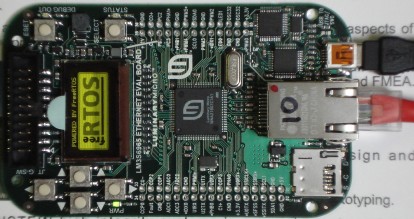
The demo described by this page uses...
FreeRTOS has made some modifications to the uIP stack since this demo was created. See the Embedded Ethernet Examples List page for more information.
 Tested on the following evaluation kits (ethernet is only available on the LM3S6965 and LM3S8962):
The Europa version of Eclipse includes enhancements that facilitate cross development. The FreeRTOS zip file contains everything required to setup the development environment, other than the Eclipse and GCC tools themselves. Please follow these instructions carefully to install and configure Eclipse correctly for use with this demo application. The Luminary Micro evaluation kits connect directly to the host PC via a micro USB cable, removing the requirement for a separate JTAG interface device. This USB connection is used to power, program and debug the microcontroller. uIP and OpenOCD are licensed separately from FreeRTOS.org. Users must familiarise themselves with their respective licenses. (OpenOCD is licensed under the GNU GPL). Although all the tools used are cross platform - I have only tested the ARM Cortex-M3/Eclipse build on a windows host. Upgrading to FreeRTOS V5.0.3: FreeRTOS V5.0.3 introduced the configMAX_SYSCALL_INTERRUPT_PRIORITY configuration option to the ARM Cortex-M3 port. See the RTOS kernel configuration documentation for full information on this feature. Upgrading to FreeRTOS V4.8.0: Prior to V4.8.0 the FreeRTOS kernel did not make use of the SVCall interrupt. From V4.8.0 onwards it does. Therefore, to upgrade an older project to the V4.8.0 standard, a small edit to the startup code is required. To do this, simply install vPortSVCHandler() in the SVCall position within the interrupt vector table (contained in the startup source file). The demo projects included in the FreeRTOS download have already been updated so these can be used as an example. Note for LM3S2965 and LM3S6965 users: The display part number changed on REV C evaluation kit boards. If you are using a REV C board then:
IMPORTANT! Notes on using the Stellaris Web Server DemoPlease read all the following points before using this RTOS port.See also the FAQ My application does not run, what could be wrong? Source Code OrganisationThe Eclipse workspace for the Eclipse Stellaris demo is located in the FreeRTOS/Demo/CORTEX_LM3Sxxxx_Eclipse directory. This is the directory to select when prompted for a workspace location during the Eclipse startup process. Be sure to read the Eclipse installation and configuration instructions prior to building the project.The FreeRTOS zip file download contains the files for all the ports and demo application projects. It therefore contains many more files than used by this demo. See the Source Code Organization section for a description of the downloaded files and information on creating a new project.
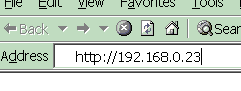
The Demo ApplicationDemo application setupNote the comments at the head of this page regarding the selection of the correct display driver.Connect the Stellaris evaluation board to a computer running a web browser either directly using a point to point (crossover) cable, or via a hub/router using a standard Ethernet cable. The prototyping board may also allow the use of a standard Ethernet cable when connecting point to point, but I have not tried this configuration. The IP address used by the demo is set by the constants uipIP_ADDR0 to uipIP_ADDR3 within the file FreeRTOS/Demo/CORTEX_LM3Sxxxx_Eclipse/RTOSDemo/webserver/uIP_Task.c. The IP addresses used by the web browser computer and the prototyping board must be compatible. This can be ensured by making the first three octets of both IP addresses identical. For example, if the web browser computer uses IP address 192.168.100.1, then the prototyping board can be given any address in the range 192.168.100.2 to 192.168.100.254 (barring any addresses already present on the network). Each evaluation kit is pre-programmed with a unique MAC address, removing the requirement for this to be manually configured. The demo application uses the LED and OLED display built onto the evaluation board so no other hardware setup is required.
Building the demo applicationAgain - please refer to the Eclipse installation and configuration instructions for more detailed information.
Running the demo applicationOnce again - please refer to the Eclipse installation and configuration instructions for more detailed information.
FunctionalityThe demo application creates 20 persistent tasks, and periodically dynamically creates and destroys another 2. These tasks consist predominantly of the standard demo application tasks (see the demo application section for details of the individual tasks).The following tasks and tests are created in addition to the standard demo tasks:
When executing correctly the demo application will behave as follows:
Served Web Pages (LM3S6965 and LM3S8962 kits only)The top of each served page includes a menu containing a link to every other page.
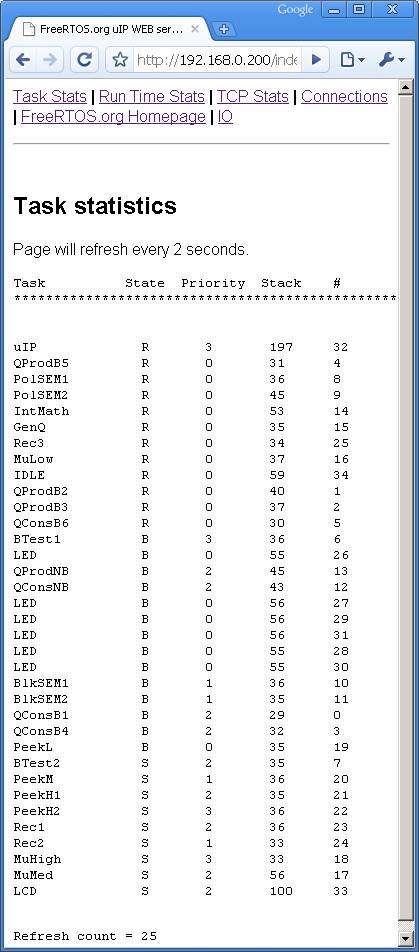 The served RTOS stats page The RTOS stats page provides run time information on the state of each task within the system - including the stack high water mark (the minimum amount of stack there has been available at any time since the task started executing). The page will reload approximately every two seconds - depending on network load. This page is transmitted in three sections - the HTML header and menu, the dynamically generated content, then finally the HTML footer. This makes the page relatively fast to load. It could be optimised further by transmitting the entire page in one go. The continuous reloading can sometimes make navigating away from the RTOS stats page a little tricky.
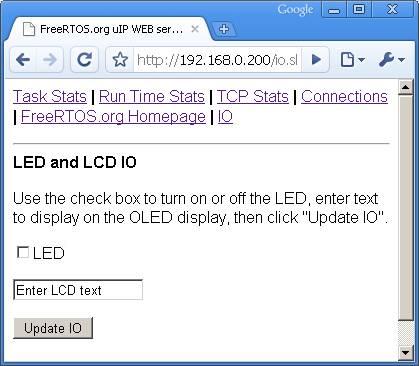 The served IO page The IO page provides a simple interface that permits data to be sent to the LED and OLED display on the development board. The check box permits the state of the user LED to be set and queried. The text box can be used to write a message to the OLED display, but does not query the text currently being display. Changes are sent to the target hardware by clicking the "Update IO" button. The TCP Stats and Connections pages display run time networking information. Note that these pages transmit each line individually so will not load quickly. This demonstrates how memory usage can be optimised through the use of a small transmit buffer by sacrificing the achieved data throughput.
RTOS Configuration and Usage DetailsRTOS port specific configurationConfiguration items specific to these demos are contained in FreeRTOS/Demo/CORTEX_LM3Sxxxx_Eclipse/RTOSDemo/FreeRTOSConfig.h. The constants defined in this file can be edited to suit your application. In particular -
Attention please!: Remember that ARM Cortex-M3 cores use numerically low priority numbers to represent HIGH priority interrupts, which can seem counter-intuitive and is easy to forget! If you wish to assign an interrupt a low priority do NOT assign it a priority of 0 (or other low numeric value) as this can result in the interrupt actually having the highest priority in the system - and therefore potentially make your system crash if this priority is above configMAX_SYSCALL_INTERRUPT_PRIORITY. The lowest priority on a ARM Cortex-M3 core is in fact 255 - however different ARM Cortex-M3 vendors implement a different number of priority bits and supply library functions that expect priorities to be specified in different ways. Use the supplied examples as a reference. Each port #defines 'BaseType_t' to equal the most efficient data type for that processor. This port defines BaseType_t to be of type long. Note that vPortEndScheduler() has not been implemented. Interrupt service routinesIn the demo application the vector table remains in flash.Unlike most ports, interrupt service routines that cause a context switch have no special requirements and can be written as per the compiler documentation. The macro portEND_SWITCHING_ISR() can be used to request a context switch from within an ISR. Note that portEND_SWITCHING_ISR() will leave interrupts enabled. Switching between the pre-emptive and co-operative RTOS kernelsSet the definition configUSE_PREEMPTION within FreeRTOS/Demo/CORTEX_LM3Sxxxx_Eclipse/RTOSDemo/FreeRTOSConfig.h to 1 to use pre-emption or 0 to use co-operative.Compiler optionsAs with all the ports, it is essential that the correct compiler options are used. The best way to ensure this is to base your application on the provided demo application files.Memory allocationSource/Portable/MemMang/heap_2.c is included in the ARM Cortex-M3 demo application project to provide the memory allocation required by the RTOS kernel. Please refer to the Memory Management section of the API documentation for full information.Copyright (C) Amazon Web Services, Inc. or its affiliates. All rights reserved.
|
|||||||||||||||||||