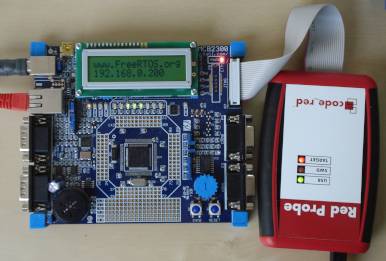
NXP LPC1766 ARM Cortex-M3 demo
Including a uIP Embedded Web Server Example
[Embedded Ethernet Examples]
This demo is now deprecated, please see the LPC1768 LPCXpresso page
for information on its replacement.
The demo presented on this page was developed on an LPC1766 that had been mounted on a MCB2300 development board. The microcontroller used
was a pre-production prototype that has numerious differences to the production parts now available and is therefore not yet configured
for optimum performance.
The demo uses:
- The FreeRTOS GCC ARM Cortex-M3 port.
- The Red Suite Eclipse based IDE from Code Red - which includes the FreeRTOS state viewer plug-in as standard. Note that Red Suite 2.0.6 or higher is required.
- A Red Probe debug interface.
- Adam Dunkels open source uIP embedded TCP/IP stack.
uIP is licensed separately from FreeRTOS. Users must familiarise themselves with the uIP license.
An Eclipse 'standard make' project is used, meaning all the build options are contained in a standard makefile and not in the Red Suite project options.
The makefile can also be used to build the application from the command line.
The FreeRTOS ARM Cortex-M3 port includes a full interrupt nesting model. Interrupt priorities must be set in accordance with the
instructions on the Customisation page for correct operation.
IMPORTANT! Notes on using the NXP ARM Cortex-M3 Web Server Demo
Please read all the following points before using this RTOS port.
- Source Code Organisation
- The Demo Application
- RTOS Configuration and Usage Details
See also the FAQ My application does not run, what could be wrong?
Source Code Organisation
The Red Suite project for the LPC1766 demo is located in the FreeRTOS/Demo/CORTEX_LPC1766_GCC_RedSuite directory. This is the
directory to select when importing the project into your Red Suite workspace.
The FreeRTOS zip file download contains the files for all the ports and demo application projects. It therefore contains many more
files than used by this demo. See the Source Code Organization section for a description
of the downloaded files and information on creating a new project.
The Demo Application
Importing the project into a Red Suite workspace
- Start Red Suite. As it starts up you will be prompted for a workspace location. You can use your existing workspace or create a new one in a
convenient location.
- Within the Red Suite IDE, select 'Import...' from the 'File' menu.
- A dialog box will appear. Select 'Existing Projects Into Workspace', then click 'Next'.
- Browse to and select the FreeRTOS/Demo/CORTEX_LPC1766_GCC_RedSuite directory to complete the import process. Take care that the
'Copy projects into workspace' check box is NOT checked during this last step.
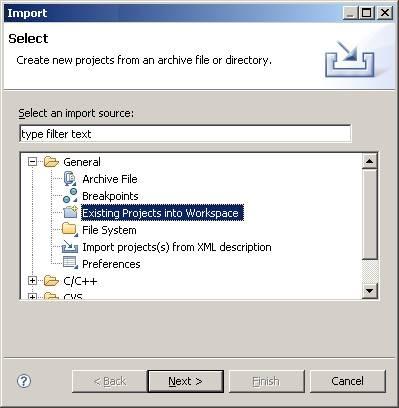
Importing the FreeRTOS project into the Red Suite workspace
Configuring the 'Linked Resource'
The Red Suite project references source files that are common to lots of the FreeRTOS demo applications and therefore reside outside of the
project directory. The Red Suite project references these files relative to a linked resource variable called FREERTOS_ROOT which must be
set to point to the root of the FreeRTOS directory tree on your host computer.
- Within the Red Suite IDE, select 'Preferences...' from the 'Window' menu.
- Locate the 'Linked Resource' preferences which can be found under 'General' 'Workspace'.
- Click 'New' to create a new linked resource. Call the linked resource FREERTOS_ROOT and set its location to the root
of the FreeRTOS directory on your computer (it should point to the directory that contains the Source and Demo sub directories).
- Once the linked resource has been set correctly, select 'Refresh' from the 'File' menu. This will force Red Suite to re-locate
all the project files using the new linked resource.
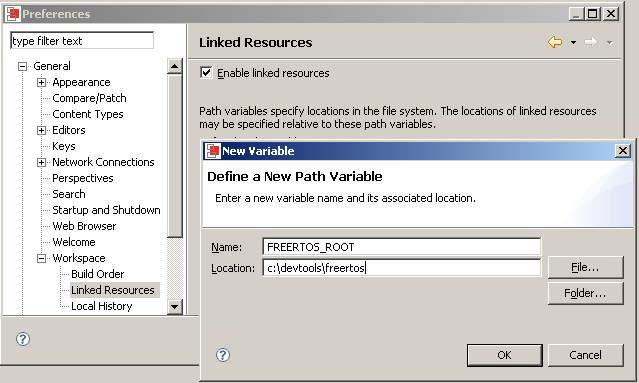
Setting the FREERTOS_ROOT linked resourceweb server configuration
Connect the MCB2300 development board to a computer running a web browser either directly using a point to point (crossover)
cable, or via a Ethernet switch using a standard Ethernet cable. [please be aware - during development of this initial version it was noted that the demo
will not function with all router configurations].
The IP address used by the demo is set by the constants configIP_ADDR0 to
configIP_ADDR3 within the file FreeRTOS/Demo/CORTEX_LPC1766_GCC_RedSuite/RTOSDemo/FreeRTOSConfig.h. The MAC address and net mask are configured
within the same header file.
The IP addresses used by the web browser computer and the LPC1766 development board must be compatible.
This can be ensured by making the first three octets of both IP addresses identical.
For example, if the web browser computer uses IP address
192.168.100.1, then the development board can be given any address in the range 192.168.100.2 to 192.168.100.254 (barring
any addresses already present on the network).
Building and executing the demo application
- Connect the Red Probe between the MCB2300 and the host computer.
- To build the project, simply select 'Build All' from the 'Project' menu. The application should build with no errors
or warnings. If errors are generated then double check the FREERTOS_ROOT linked resource setting.
- A launch configuration needs to be created before a debug session can be started. This only needs to be done once, after
it has been created debug sessions can be started simply by clicking the 'Debug' speed button. To create a launch configuration
first select 'Open Debug Dialog...' from the 'Run' menu.
- In the dialog box that opens, double click where it says 'C/C++ MCU Application' to create a new configuation, then use
the project 'Browse' and C/C++ Application 'Search Project' buttons to set the project and binary files respectively.
- Finally click 'Debug' to program the MCU flash memory and start a debug session.
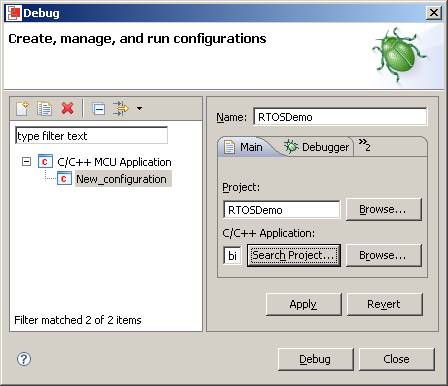
Setting up the launch configuration
Functionality
The demo application creates 35 tasks prior to starting the RTOS scheduler. These tasks consist
predominantly of the standard demo application tasks (see the demo application
section for details of the individual tasks). Their only purpose is to test the RTOS kernel port and provide
a demonstration of how to use the various API functions.
The following tasks and tests are created in addition to the standard demo tasks:
- LCD task
The LCD task is a 'gatekeeper' task. It is the only task that is permitted to access the
LCD directly. Other tasks or interrupts wishing to write a message to the LCD
send the message on a queue to the LCD task instead of accessing the LCD themselves.
The LCD task just blocks on the queue waiting for messages - waking and displaying
the messages as they arrive.
- Check function - called from the tick hook
This only executes every five seconds. Its main function is to check that all the
standard demo tasks are still operational. Should any unexpected behaviour be discovered
within a standard demo task the 'check' function will write an error to the LCD (via
the LCD task). If all the demo tasks are executing with their expected behaviour
then the check task writes PASS to the LCD (again via the LCD task), as described
above.
The check function executes within the context of an interrupt service routine so
is a good example of how using a gatekeeper task to control the LCD permits even
interrupts to output LCD messages.
- uIP task
This is the task that handles the uIP stack. All TCP/IP processing is performed in this task.
When executing correctly the demo application will behave as follows:
- The 'check' function will write "PASS" to the LCD every 5 seconds.
- The target hardware will serve the web pages described below to a standard web browser. To connect to the target:
- Open a web browser on the connected computer.
- Type "HTTP://" followed by the target IP address into the browsers address bar.
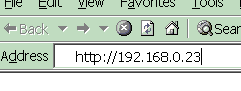 Entering the IP address into the web browser
(obviously use the correct IP address for your system)
Served Web Pages
The top of each served page includes a menu containing a link to every other page.
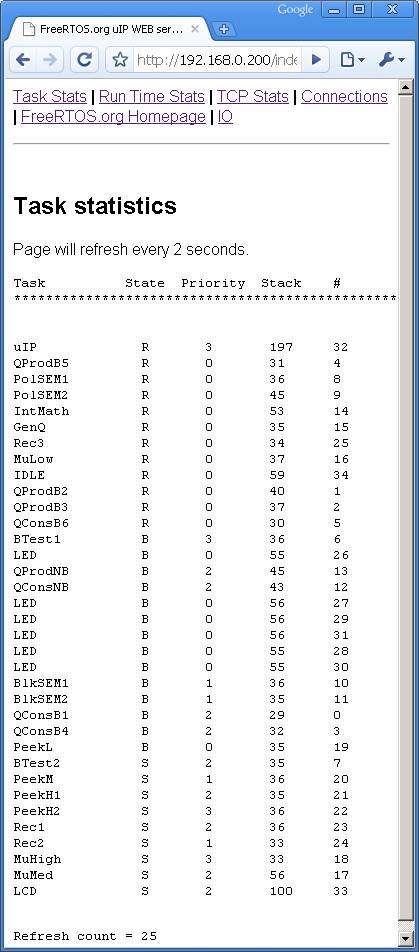 The served RTOS stats page showing status information on each task in the system.
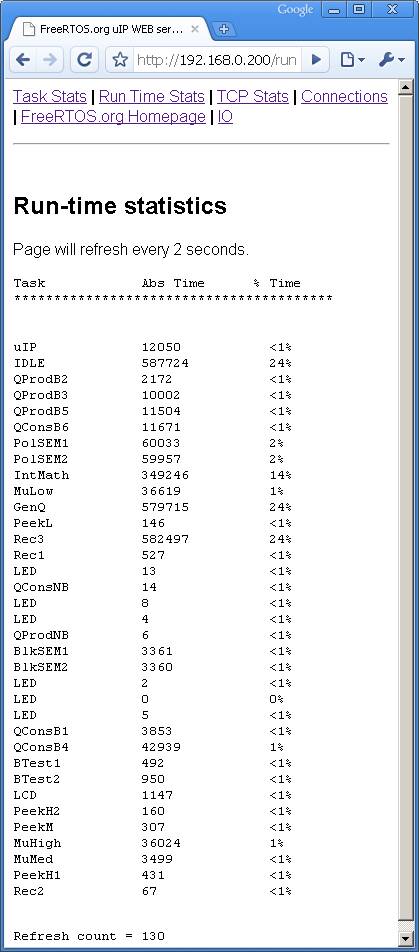 The served run time stats page showing the processor utilisation of each task.
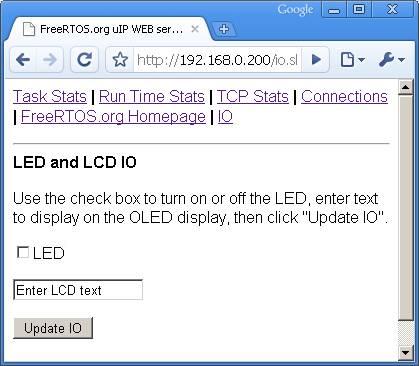 The served IO page
The IO page provides a simple interface that permits data to be sent to the LED and LCD on the development board.
The check box permits the state of the user LED to be set and queried. The text box can be used to write a message to the LCD,
but does not query the text currently being display.
Changes are sent to the target hardware by clicking the "Update IO" button.
The TCP Stats and Connections pages display run time networking information.
RTOS port specific configuration
Configuration items specific to these demos are contained in FreeRTOS/Demo/CORTEX_LPC1766_GCC_RedSuite/FreeRTOSConfig.h. The
constants defined in this file can be edited to suit your application. In particular -
- configTICK_RATE_HZ
This sets the frequency of the RTOS tick. The supplied value of 1000Hz is useful for
testing the RTOS kernel functionality but is faster than most applications require. Lowering this value will improve efficiency.
- configKERNEL_INTERRUPT_PRIORITY and configMAX_SYSCALL_INTERRUPT_PRIORITY
See the RTOS kernel configuration documentation for full information on these configuration constants.
Attention please!: Remember that ARM Cortex-M3 cores use numerically low priority numbers to represent HIGH
priority interrupts, which can seem counter-intuitive and is easy to forget! If you wish to assign an interrupt a low priority do NOT assign it a
priority of 0 (or other low numeric value) as this can result in the interrupt actually having the highest priority in the system - and therefore potentially make your system crash if this
priority is above configMAX_SYSCALL_INTERRUPT_PRIORITY.
The lowest priority on a ARM Cortex-M3 core is in fact 255 - however different ARM Cortex-M3 vendors implement a different number of priority bits and supply library
functions that expect priorities to be specified in different ways. Use the supplied examples as a reference.
Each port #defines 'BaseType_t' to equal the most efficient data type for that processor. This port defines
BaseType_t to be of type long.
Note that vPortEndScheduler() has not been implemented.
Interrupt service routines
In the demo application the vector table remains in flash.
Unlike most ports, interrupt service routines that cause a context switch have no special requirements and can be written as per the compiler documentation.
The macro portEND_SWITCHING_ISR() can be used to request a context switch from within an ISR. An example interrupt service routine called
vEMAC_ISR() is provided in FreeRTOS/Demo/CORTEX_LPC1766_GCC_RedSuite/webserver/emac.c. This should be used as a reference example.
Note that portEND_SWITCHING_ISR() will leave interrupts enabled.
Switching between the pre-emptive and co-operative RTOS kernels
Set the definition configUSE_PREEMPTION within FreeRTOS/Demo/CORTEX_LPC1766_GCC_RedSuite/FreeRTOSConfig.h to 1 to use pre-emption or 0
to use co-operative.
Compiler options
As with all the ports, it is essential that the correct compiler options are used. The best way to ensure this is to base your
application on the provided demo application files.
Memory allocation
Source/Portable/MemMang/heap_2.c is included in the ARM Cortex-M3 demo application project to provide the memory
allocation required by the RTOS kernel.
Please refer to the Memory Management section of the API documentation for
full information.
Copyright (C) Amazon Web Services, Inc. or its affiliates. All rights reserved.